Cuprio Settings Guide
How to Configure Cuprio
Open the Settings screen
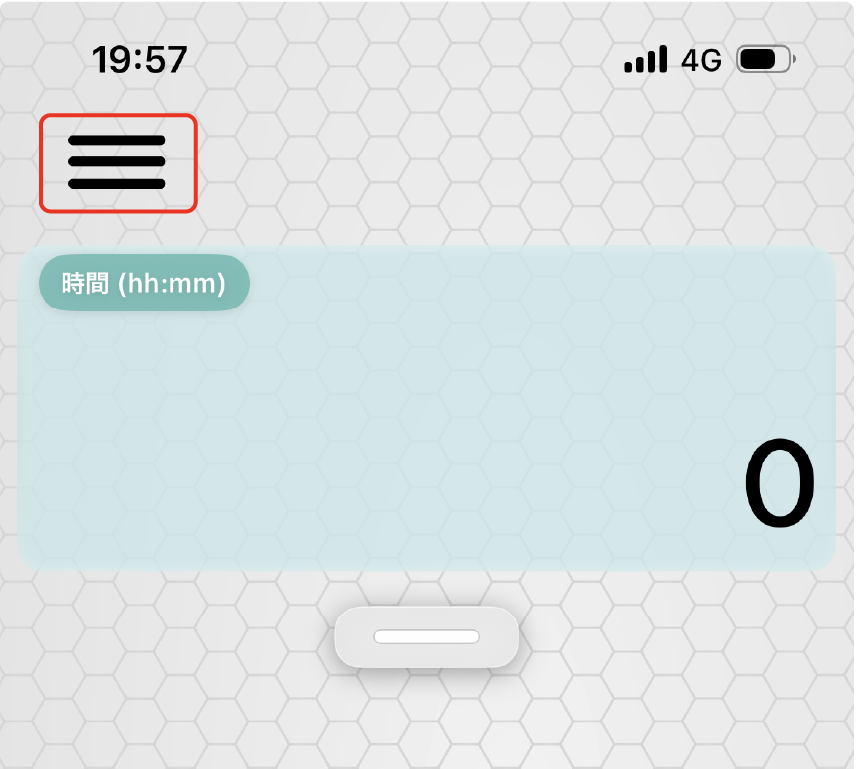
Tap the hamburger menu, the icon with three horizontal lines, at the top of the calculator to open Settings.
Change the skin
Cuprio supports iOS display modes, preset skins, and your own photos.
1. Match the iOS display mode
Choose System, Light, or Dark under Theme.
- System: Follows your device setting.
- Light: Uses a bright color scheme.
- Dark: Uses a dark color scheme.
2. Choose a preset skin
Choose a preset under Background.

Vivid, bright, and energetic, based on orange and yellow.

Fresh and calm, based on green.

A playful lucky-cat design.
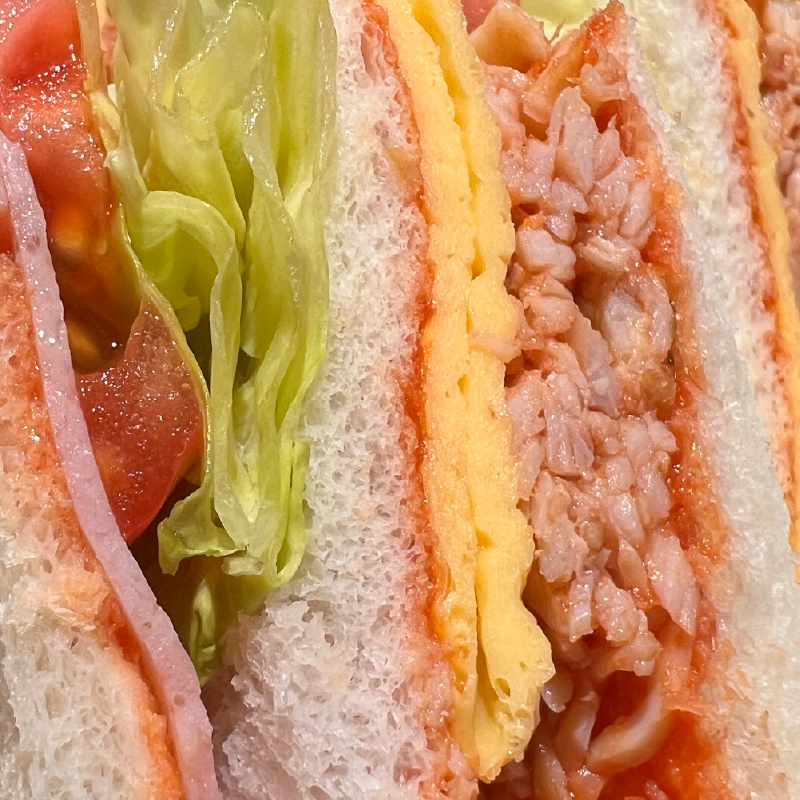
A relaxed cafe atmosphere.

A bright cherry-blossom design.

A calm Japanese-style design inspired by nature.
3. Set your own photo
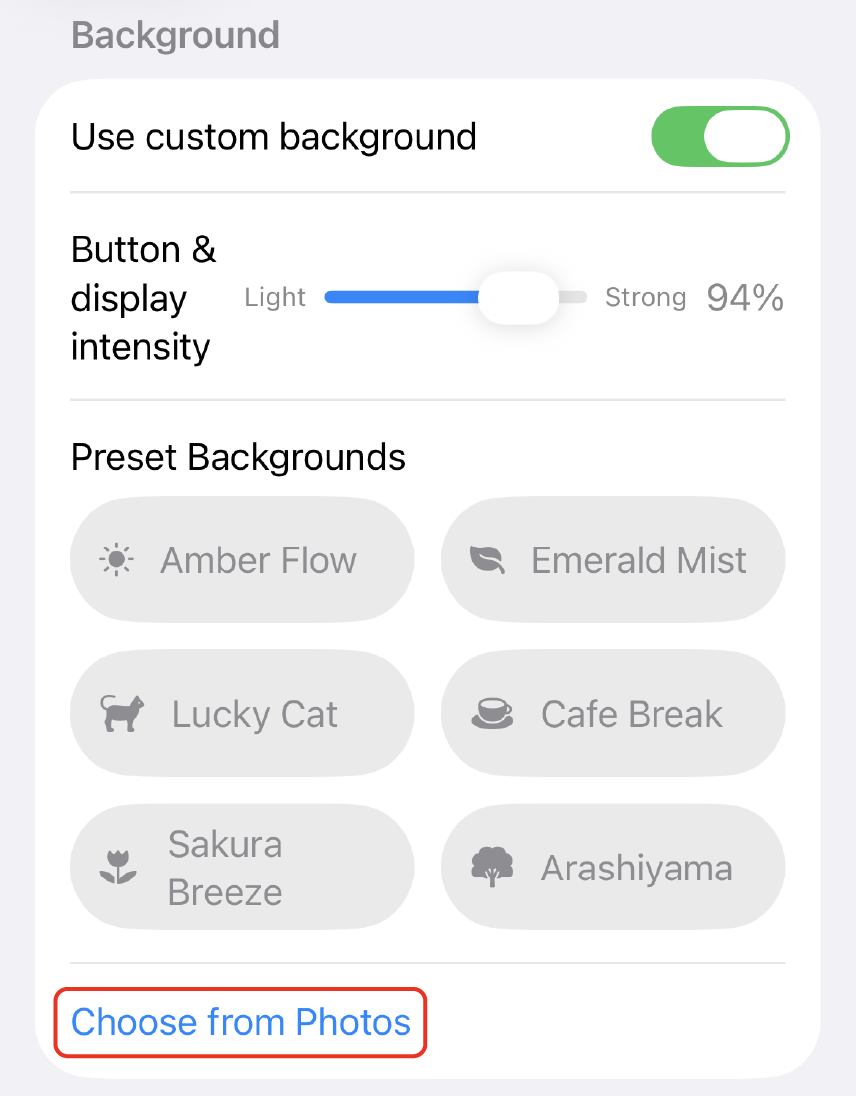
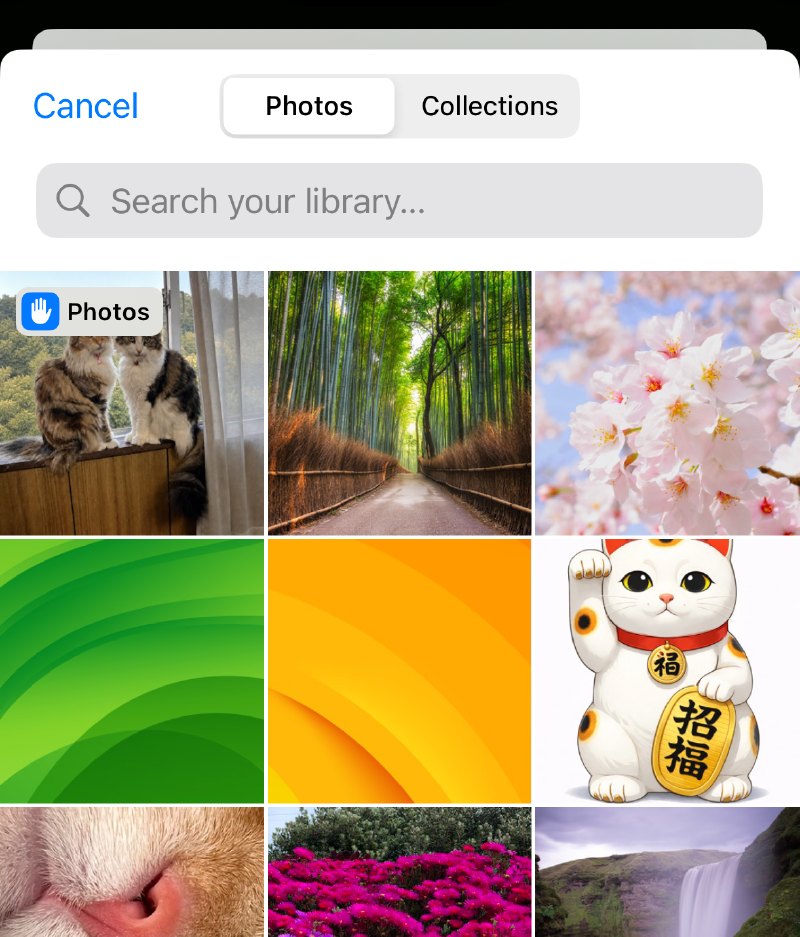
Open Background, tap Choose from Photos, select an image, adjust it, and tap Done.
- Open Background in Settings.
- Tap Choose from Photos.
- Select a photo.
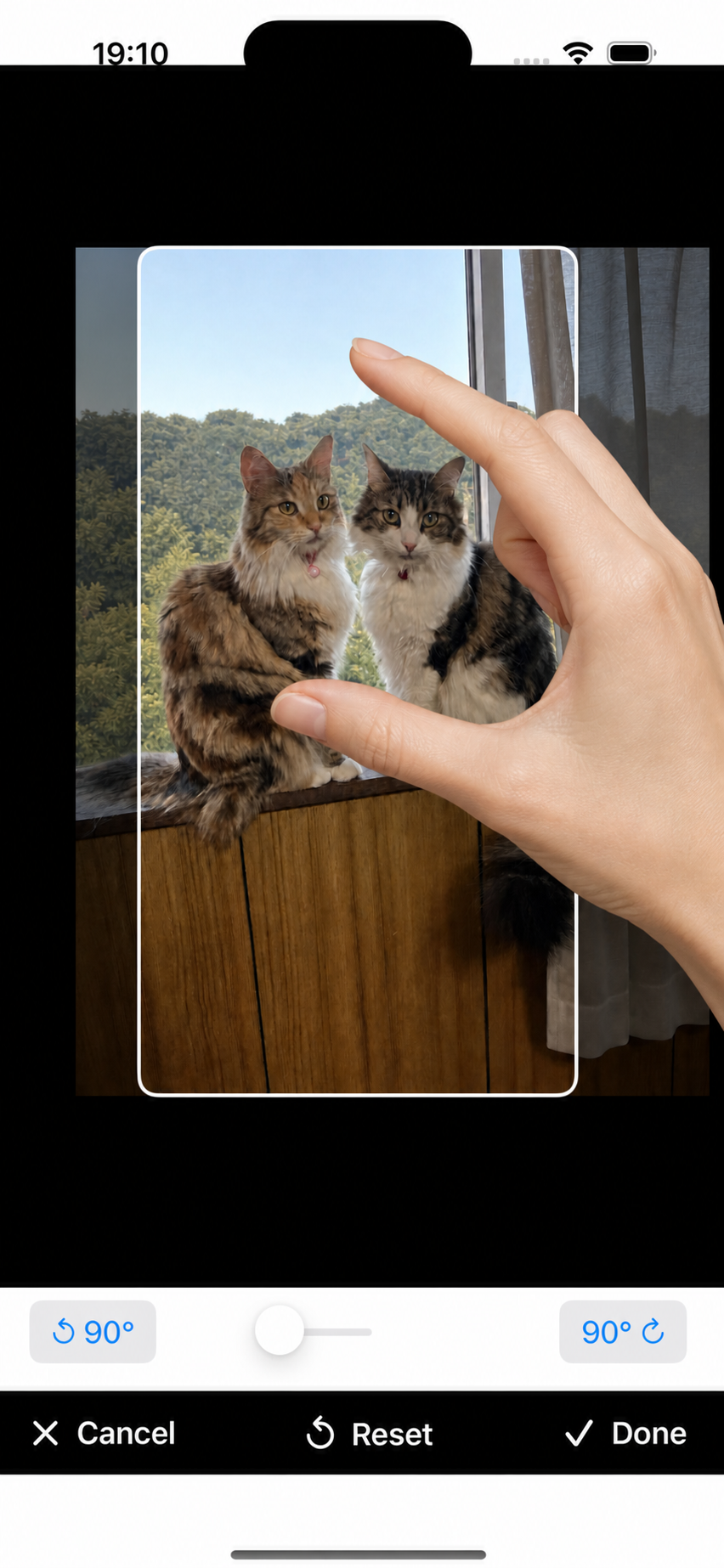
- Adjust its position and size.
- Tap Done to set it as your original skin.
How to adjust the photo
- Zoom: Spread two fingers apart or bring them together.
- Position: Drag the photo.
- Rotation: Use two fingers or the controls.
- Reset: Restore the initial values.
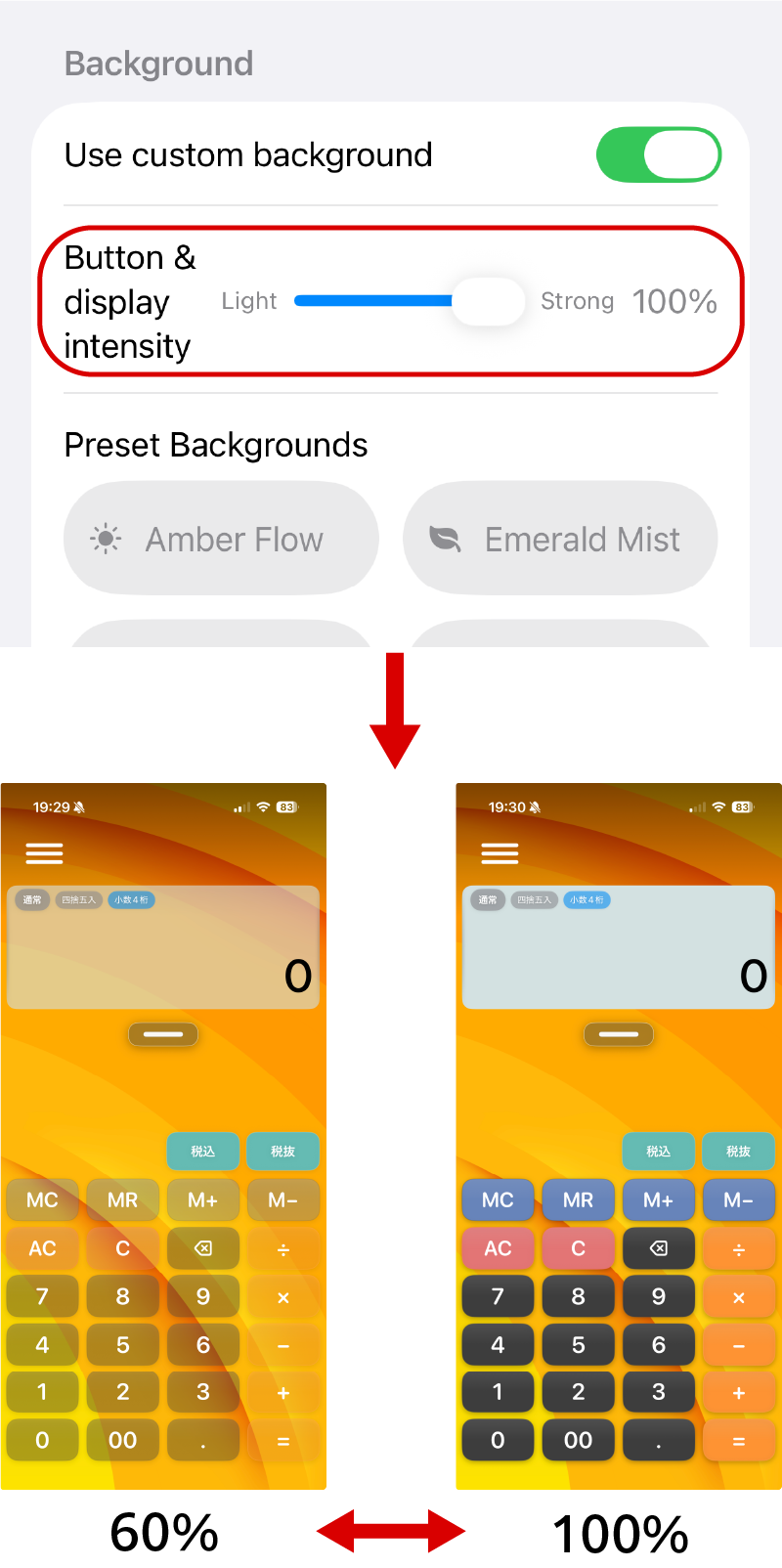
4. Button & display intensity
Move toward Light to show more background, or Strong to make buttons easier to read.
Restore the standard background
Clear the current background.
Calculation mode settings
Standard
Calculates in input order.
Example: 1 + 2 × 3 = 9
Priority
Multiplication and division are calculated first.
Example: 1 + 2 × 3 = 7
Time (hh:mm:ss)
Calculates hours, minutes, and seconds. This mode is suitable for calculating durations such as working hours and travel time.
Example: 07:50 × 2 = 15:40
Time (decimal)
Handles time as decimal hours. Because time can be used as a number, this mode is suitable for calculations such as hourly pay.
Example: 07:30 × ¥1,200 per hour × 20 days = ¥180,000 per month
Tax calculation settings
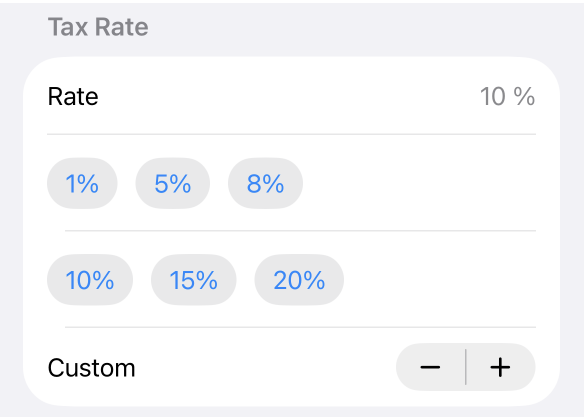
Choose 1%, 5%, 8%, 10%, 15%, 20%, or a custom rate. The default is 10%.
Other settings
Number of decimal places
Choose the displayed decimal places.
Rounding method
Choose round half up, round up, or round down.
Showing the M1/M2 memory keys
Turn on the option to show M1/M2 keys. Long-press to save and tap to recall.
Keypad display
Configure the keypad layout.
Haptic feedback
Configure vibration when keys are tapped.
Switching between Japanese and English
Choose a language at the bottom of Settings.