How to Use Cuprio
Cuprio User Guide
1. Choose a skin you like
Cuprio supports an iOS-mode background, preset skins, and your own photos. See How to change the skin for details.

Vivid, bright, and energetic, based on orange and yellow.

Fresh and calm, based on green.

A playful design featuring a lucky cat.
A relaxed design with a cozy cafe atmosphere.

A bright design inspired by cherry blossoms.

A calm Japanese-style design inspired by nature.
2. Calculate time directly
Cuprio calculates working hours, task duration, travel time, and schedules as well as ordinary numbers.
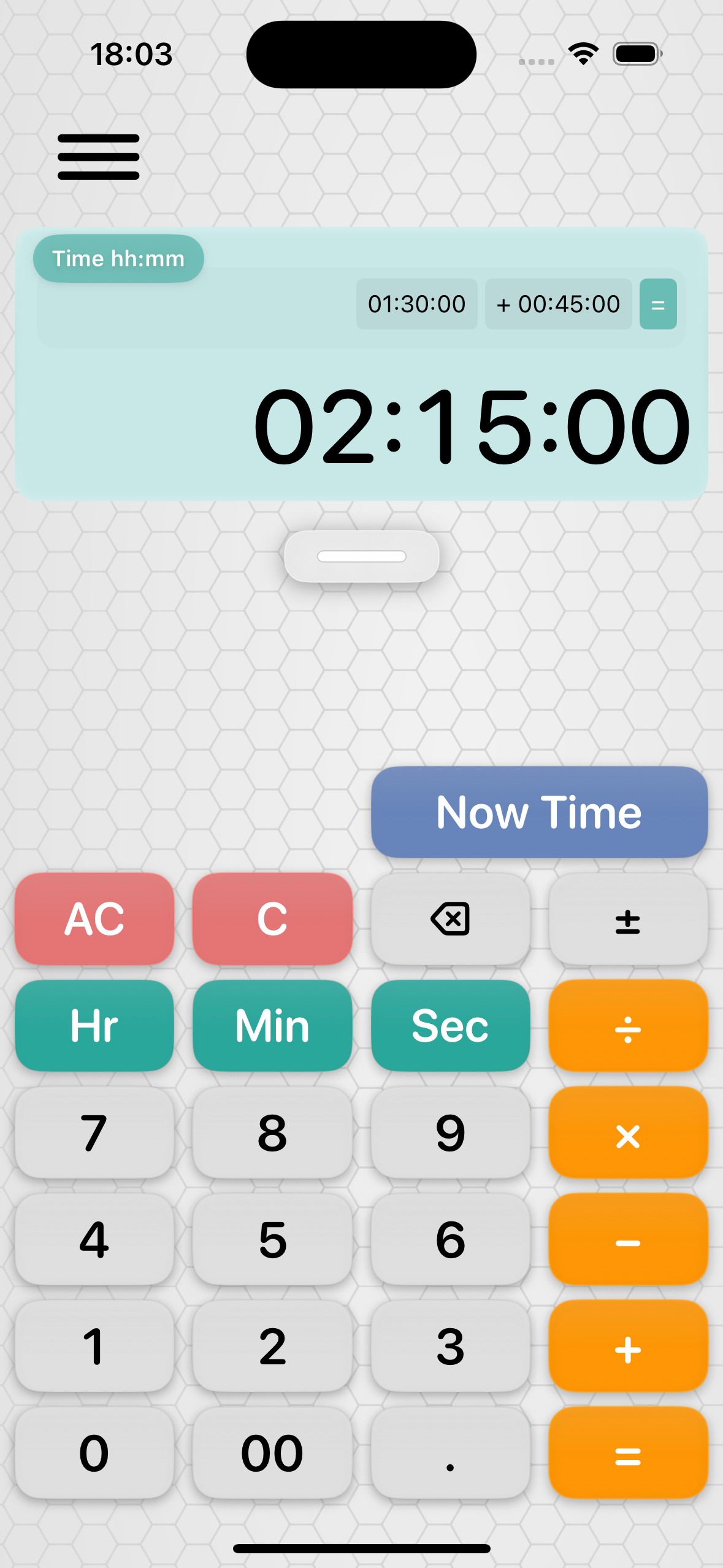
Time (hh:mm:ss) mode
Select this mode in Settings to enter hours, minutes, and seconds.
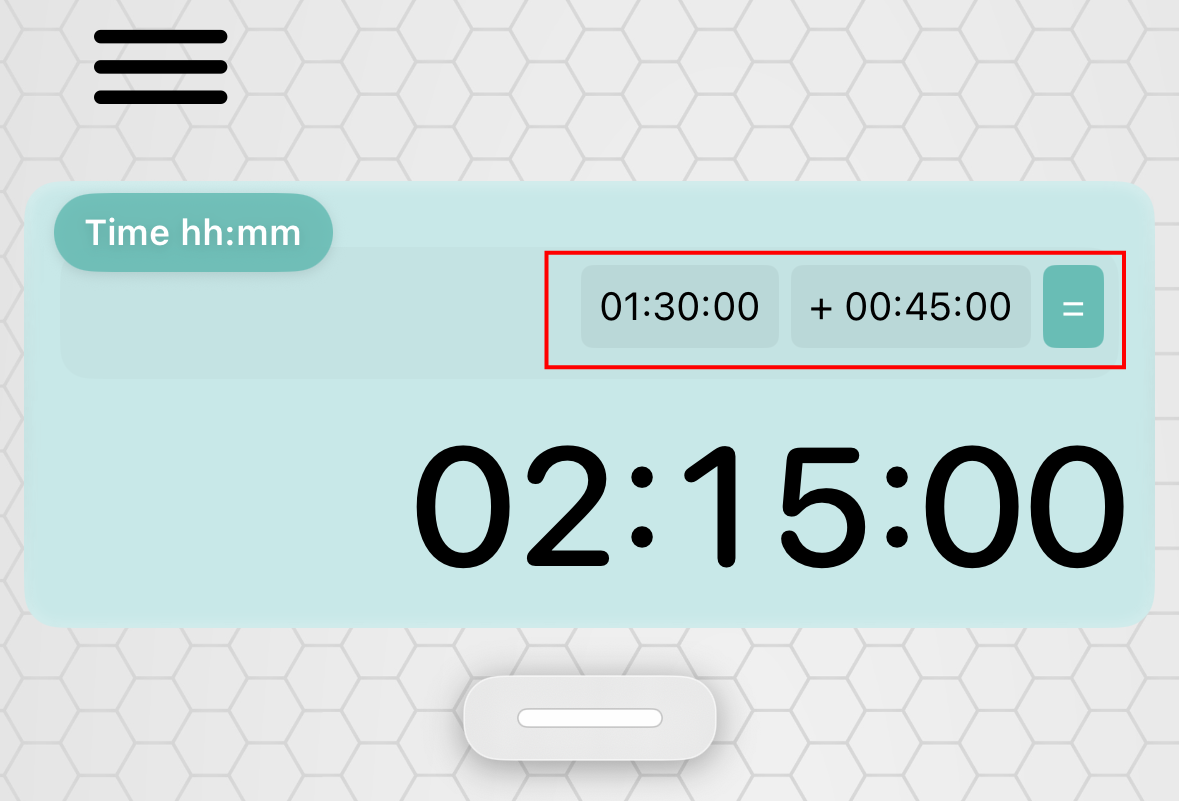
Example: 01:30:00 + 00:45:00 = 02:15:00
Tap Hour, enter the number, then tap Minute and Second as needed. For 1 hour 30 minutes, tap Hour, 1, Minute, 3, and 0. The Hour, Minute, and Second keys move between fields.
You can add and subtract times, multiply time by a number, or divide time by a number. Results can continue into the next calculation.
Time (decimal) mode
Select this mode to handle decimal hours. Example: 1.5h + 0.75h = 2.25h. It is useful for totaling work hours or using an hourly rate.
Time display formats
In hh:mm:ss mode, results can be shown as hh:mm:ss, days plus hours and minutes, or days plus hh:mm:ss.
3. Use the Current Time key
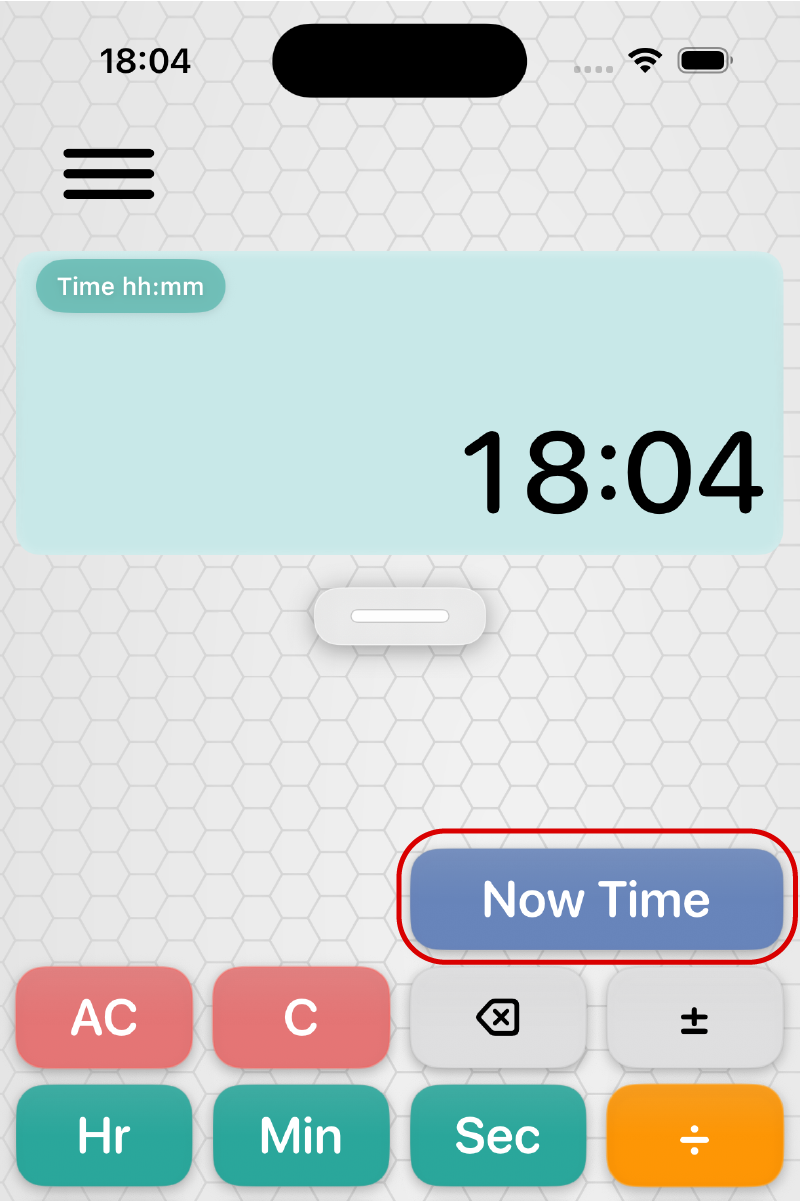
In hh:mm:ss mode, tap Current Time to enter the current time. Add or subtract a duration to calculate a future or past time. The entered time is the moment you tapped the key.
Example: Current Time enters 15:13. Add 10 minutes to the station and 2 hours by train: 15:13 + 10 minutes + 2 hours = 17:23.
4. Use the tax keys
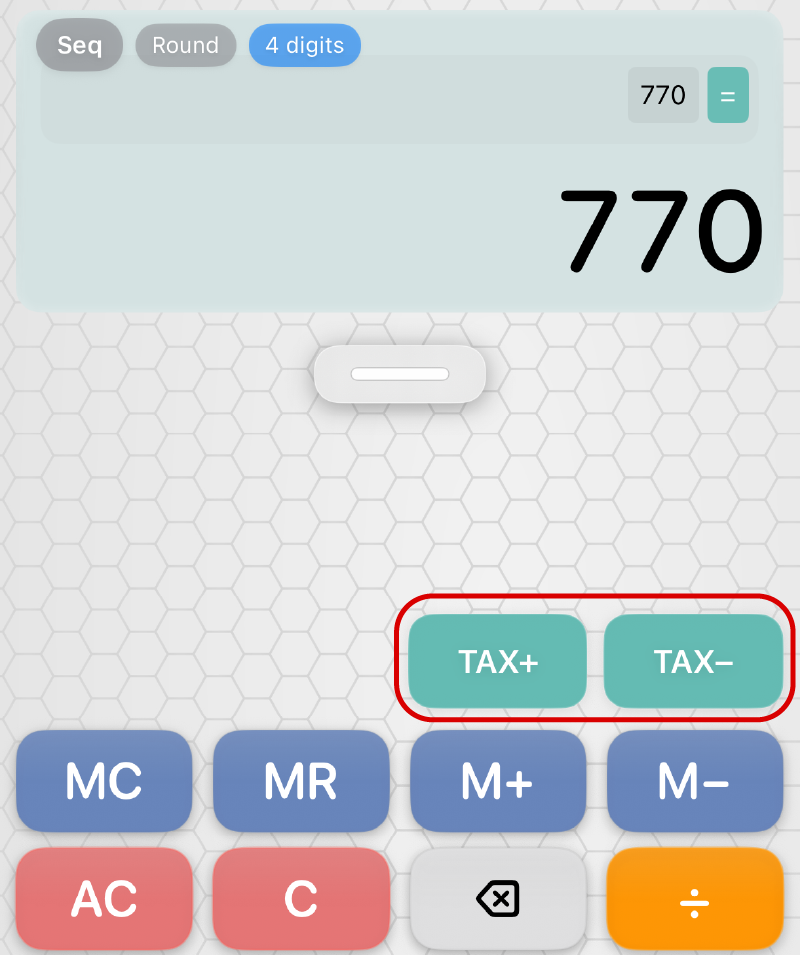
Tax keys work in Standard and Priority modes. Set the tax rate in Settings; the initial setting is 10%, with presets of 1%, 5%, 8%, 10%, 15%, and 20%, plus custom rates. Enter an amount and tap Tax Included or Tax Excluded.
- Tax Included: Adds the selected rate.
- Tax Excluded: Removes tax from a tax-included amount.
Change the rate under Tax Rate and rounding under Rounding Method.
5. View calculation history
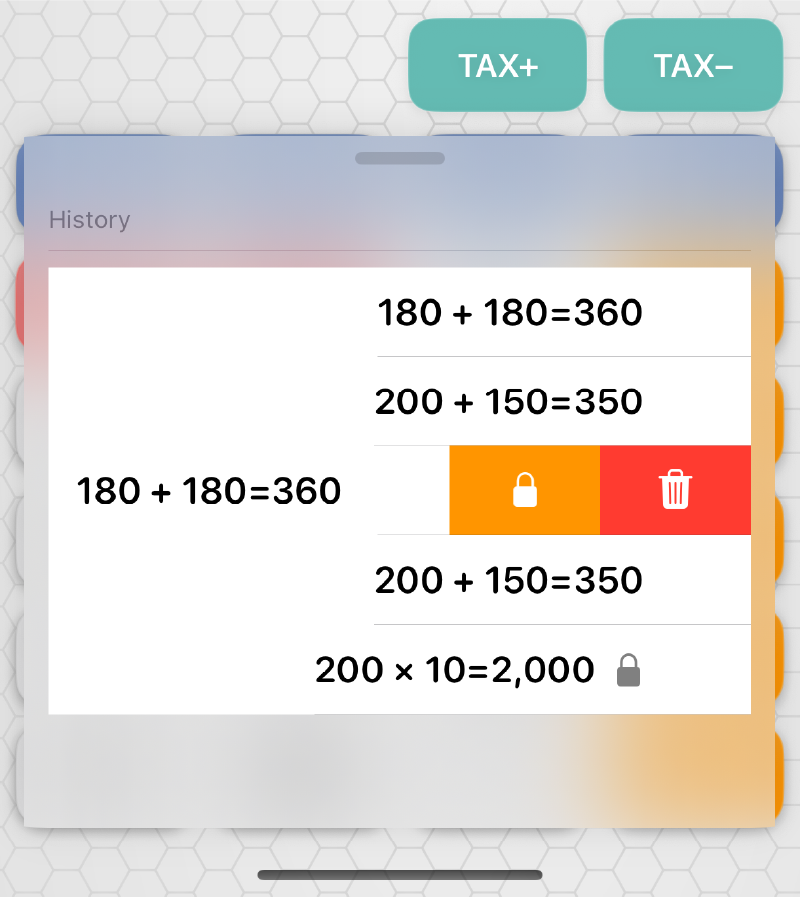
Calculation results are saved in History. Tap the grabber, the horizontal handle, to open it and reuse previous formulas and results.
Lock a history item
Swipe left on an item you want to keep, then tap Lock. A lock icon appears on the item, protecting it from automatic deletion when the history limit is exceeded. To unlock it, swipe left again and tap Unlock.
Delete a history item
Swipe left on the item and tap Delete. A locked item can also be deleted manually this way.
History limit
Up to five items are saved. When a sixth item is added, the oldest unlocked item is deleted automatically. If all five items are locked, new calculation results are not added to History until an item is unlocked or deleted.
6. Use the grabber
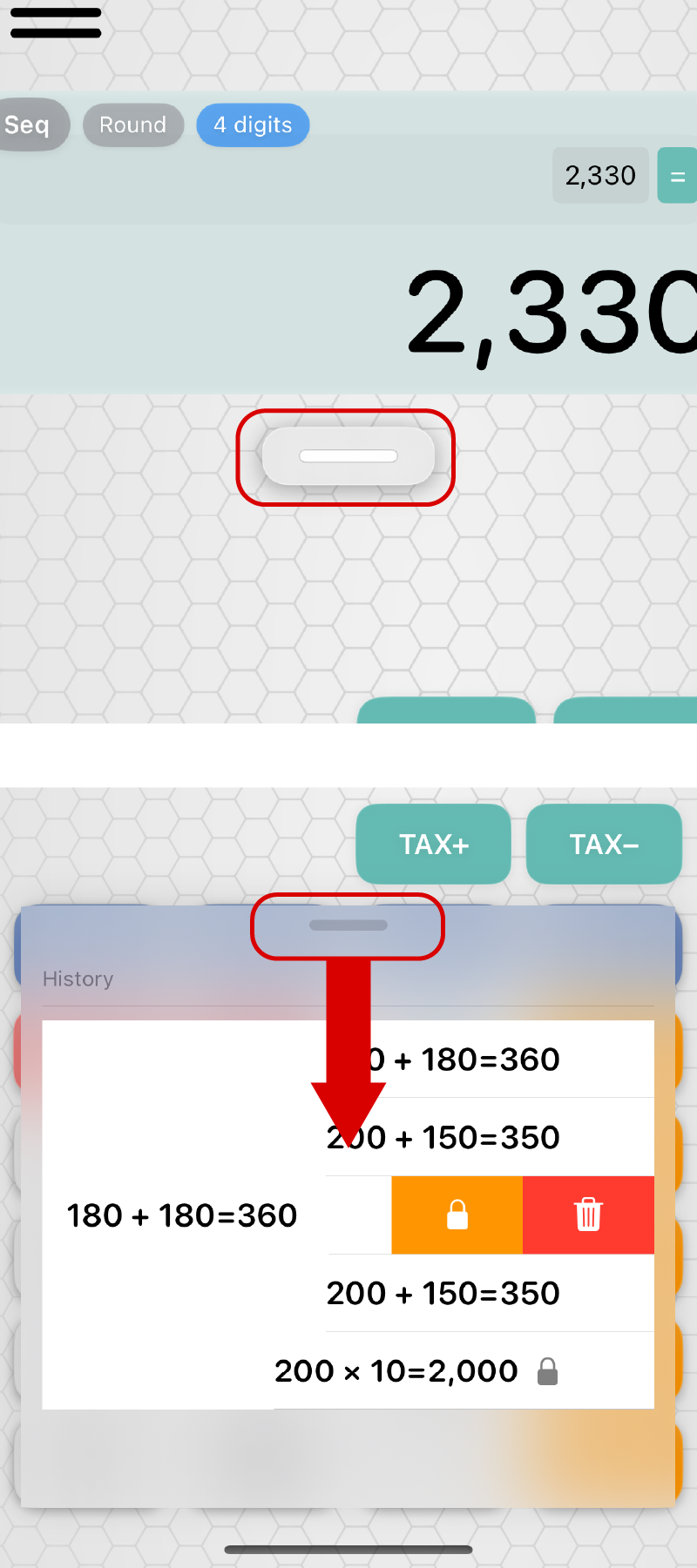
The horizontal handle below the main display is called the grabber. Tap the grabber to open the history tray. You can review previous calculations and results, and select an item from the history to use it again in a new calculation. To close the history tray, drag the bar at the top of the tray downward.
7. Return to an earlier point in the current calculation
During a calculation, the numbers and operators you entered appear as chips at the top of the main window. Tap the chip where you want to return. The calculation is restored to that point, allowing you to enter the numbers or operators again without restarting the entire calculation.
8. Use memory
Standard memory
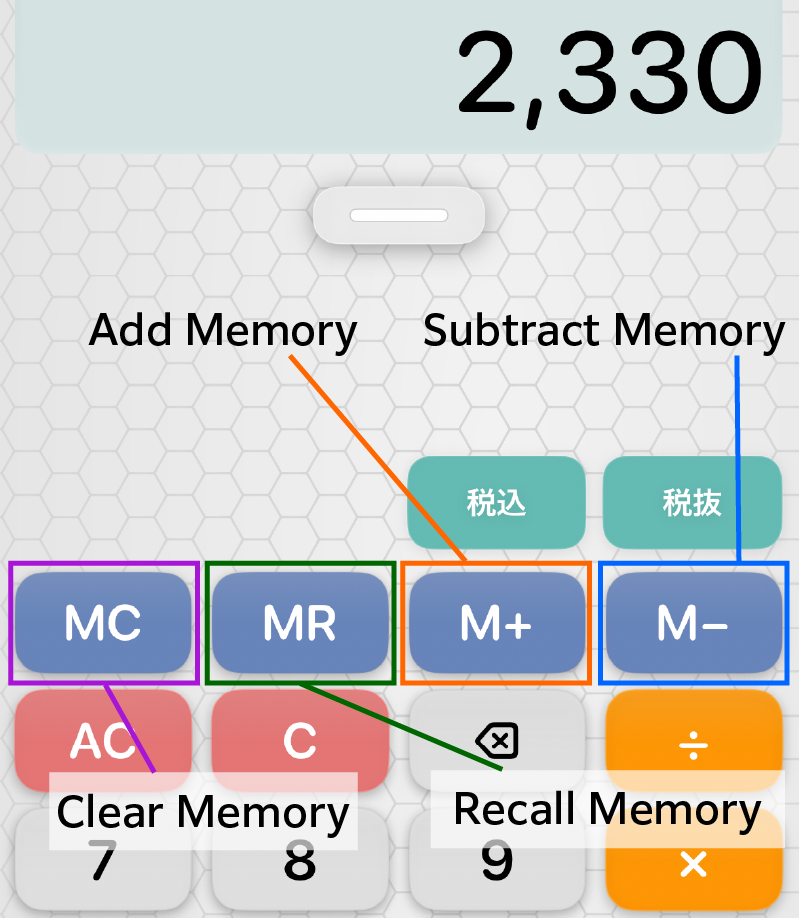
Standard memory temporarily saves values. M+ adds the displayed value, M- subtracts it, MR recalls the saved value, and MC clears memory.
Tap M+ after each result and MR at the end to total several results. This is useful for shopping totals and multiple areas or quantities.
Example: travel expenses and a ticket
200 + 150 = 350 → M+ (train fare)
180 + 180 = 360 → M+ (bus fare)
1,800 → M+ (ticket)
MR → 2,510 (total)
180 → M- (a friend drives the museum bus section)
MR → 2,330 (recalculated total)
MC → 0 (clear memory)
M1/M2 keys
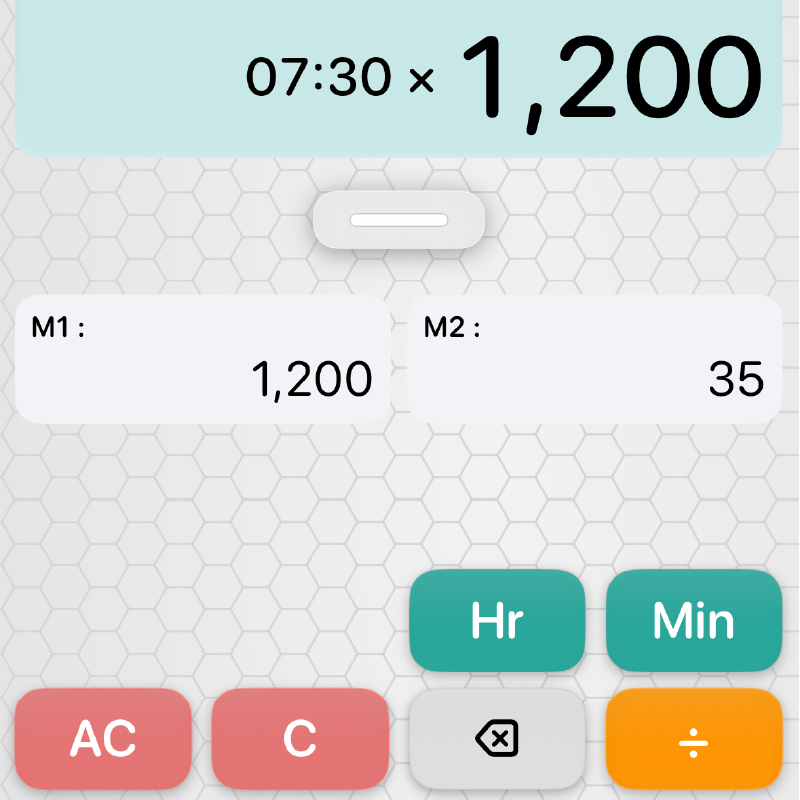
M1/M2 are additional memory keys for frequently used values. Unlike standard memory, they store unit prices, constants, discount rates, hourly wages, travel times, and other values as they are.
Tap a key to recall its value. Display a value and long-press the key to save or overwrite it. For example, save an hourly wage in M1 and a shipping fee in M2 to use them without re-entering them.
See the M1/M2 memory key settings for details.
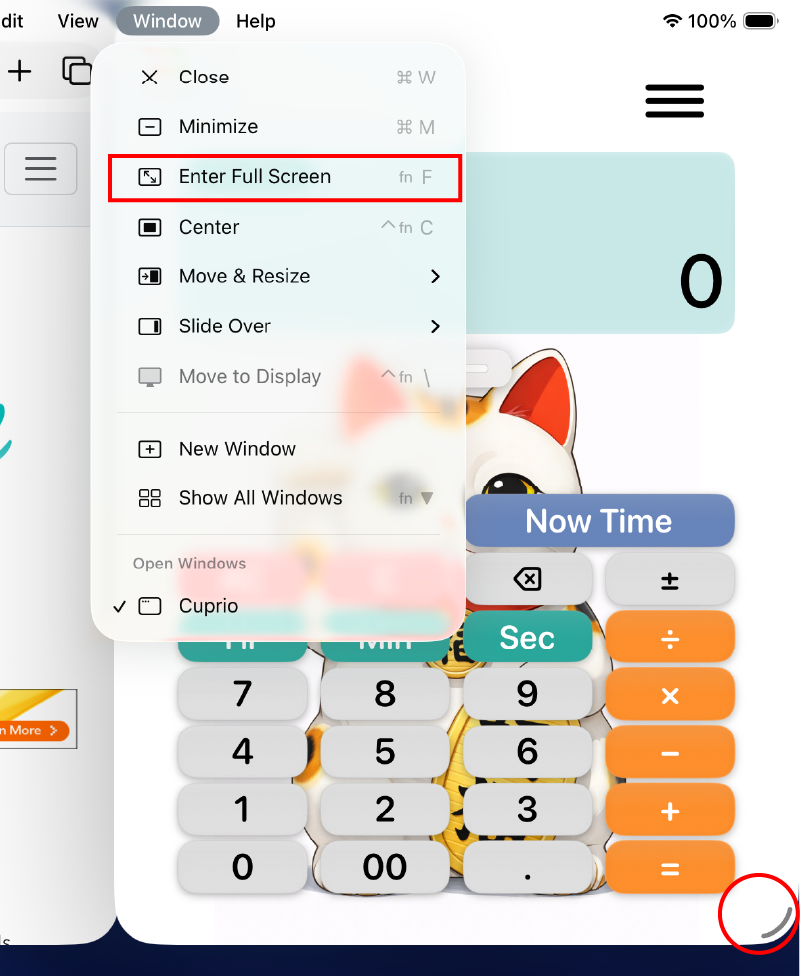
9. Using Cuprio on iPad
On iPadOS 26 or later, Cuprio supports windowed use alongside other apps.
Enter Full Screen: From the menu bar at the top of the screen, choose Window → Enter Full Screen.
Exit Full Screen: From the menu bar, choose Window → Exit Full Screen.
You can also drag the handle at the lower-right corner of the window to resize it. Cuprio automatically adjusts its layout in smaller windows to keep the keys easy to use.